Ziel: Wir bauen Schritt für Schritt eine Animation, die einen rotierenden 3D-Würfel im Browser rendert – ohne externe Bibliotheken, nur mit HTML, JavaScript und etwas Mathematik.
Was du brauchst:
Texteditor (z.B. VS Code)
Webbrowser (Chrome, Firefox oder Safari)
Grundkenntnisse: Variablen, Funktionen, Schleifen in JavaScript
Das große Bild
Bevor wir mit dem Code beginnen, kurz die Idee dahinter:
3D-Punkt  →  Projektion  →  Normalisierte 2D-Koordinaten  →  Canvas-Pixel
(x, y, z)     (÷ durch z)        (−1 bis +1)                  (0 bis 800)
Jeden Frame:
Den Würfel ein bisschen weiter drehen
Jeden 3D-Eckpunkt auf 2D projizieren
Die projizierten Punkte als Linien auf dem Canvas zeichnen
Erstelle daneben eine leere Datei index.js – hier kommt der gesamte Code rein.
Öffne index.html im Browser und lass ihn während der ganzen Übung offen.
Nach jedem Schritt einfach die Seite neu laden (F5 / Cmd+R).
Schritt 2 – Wie funktionieren Canvas-Koordinaten?
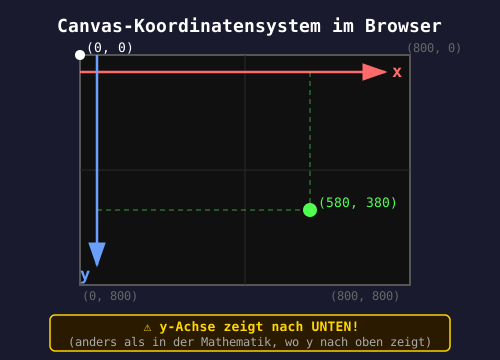
Der Canvas hat sein eigenes Koordinatensystem. Der Nullpunkt (0, 0) liegt oben links. Die x-Achse zeigt nach rechts, die y-Achse zeigt nach unten – das ist anders als in der Mathematik!
Punkt
Position
(0, 0)
Oben links
(800, 0)
Oben rechts
(0, 800)
Unten links
(400, 400)
Genau in der Mitte
Das werden wir später berücksichtigen müssen, wenn wir von mathematischen Koordinaten in Canvas-Koordinaten umrechnen.
Schritt 3 – Canvas einrichten und Hintergrund zeichnen
Füge am Anfang von index.js hinzu:
const BACKGROUND = "#101010"; // Fast-Schwarzconst FOREGROUND = "#50FF50"; // Grün (wie ein alter Terminal-Bildschirm)// Canvas und Zeichenkontext einrichtenconst canvas = document.getElementById("game");canvas.width = 800;canvas.height = 800;const ctx = canvas.getContext("2d");// Füllt den gesamten Canvas mit der Hintergrundfarbefunction clearCanvas() { ctx.fillStyle = BACKGROUND; ctx.fillRect(0, 0, canvas.width, canvas.height);}// TestclearCanvas();
Ergebnis: Ein fast-schwarzes Quadrat im Browser.
Schritt 4 – Einen Punkt zeichnen
Wir zeichnen Punkte als kleine Quadrate:
// Zeichnet ein kleines Quadrat an Position p (Canvas-Koordinaten)function drawPoint(p) { const size = 20; ctx.fillStyle = FOREGROUND; ctx.fillRect(p.x - size / 2, p.y - size / 2, size, size);}// Test: Punkt genau in der Mitte des CanvasclearCanvas();drawPoint({ x: 400, y: 400 });
Ergebnis: Ein grüner Punkt in der Mitte.
Schritt 5 – Normalisierte Koordinaten
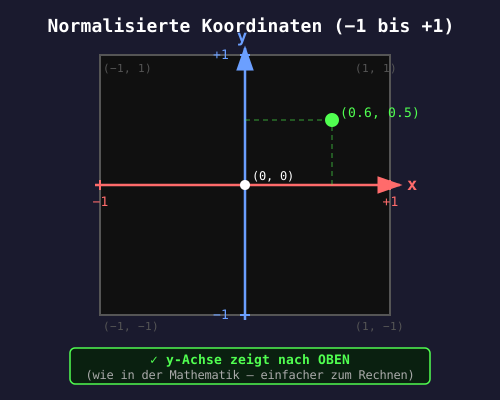
Direkt mit Pixelwerten (0 bis 800) zu rechnen ist umständlich. Viel einfacher ist es, in einem normalisierten Koordinatenraum zu arbeiten: Werte von −1 bis +1, wobei (0, 0) die Mitte ist.
In normalisierten Koordinaten zeigt die y-Achse nach oben (wie in der Mathematik). Das müssen wir beim Umrechnen umkehren.
Die Umrechnungsformel:
screen_x = (x + 1) / 2  ×  canvas.width
screen_y = (1 − (y + 1) / 2)  ×  canvas.height
              ↑ Das Minus kehrt die y-Achse um
Schritt für Schritt für x = 0 (Mitte):
(0 + 1) / 2 × 800 = 0.5 × 800 = 400 ✓
Für x = −1 (linker Rand):
(−1 + 1) / 2 × 800 = 0 × 800 = 0 ✓
Für x = 1 (rechter Rand):
(1 + 1) / 2 × 800 = 1 × 800 = 800 ✓
// Wandelt normalisierte Koordinaten (−1 bis +1) in Canvas-Pixel umfunction toScreenCoords(p) { return { x: (p.x + 1) / 2 * canvas.width, y: (1 - (p.y + 1) / 2) * canvas.height, }}// Test: Punkt bei (0, 0) in normalisiertem Raum = Mitte des CanvasclearCanvas();let pointCoords = {x: 0, y: 0}; // punkt in der mittelet screenPoint = toScreenCoords(pointCoords);drawPoint(screenPoint);
Ergebnis: Grüner Punkt in der Mitte. Jetzt mit mathematischen Koordinaten statt Pixelwerten.
Schritt 6 – Linien zeichnen
// Zeichnet eine Linie zwischen zwei Punkten (Canvas-Koordinaten)function drawLine(p1, p2) { ctx.lineWidth = 3; ctx.strokeStyle = FOREGROUND; ctx.beginPath(); ctx.moveTo(p1.x, p1.y); ctx.lineTo(p2.x, p2.y); ctx.stroke();}// Test: Linie von oben-links nach unten-rechtsclearCanvas();drawLine( toScreenCoords({ x: -0.8, y: 0.8 }), toScreenCoords({ x: 0.8, y: -0.8 }));
Ergebnis: Eine diagonale grüne Linie.
Schritt 7 – 3D-Projektion verstehen
Jetzt kommt das mathematische Herzstück der Übung.
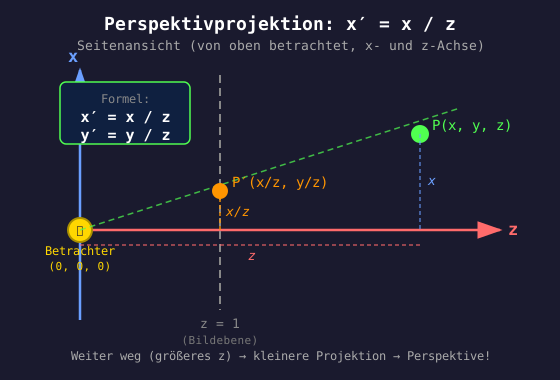
Die Idee: Stell dir vor, dein Auge ist bei (0, 0, 0) und du schaust in Richtung der positiven z-Achse. Ein Punkt, der weiter weg ist (größeres z), erscheint kleiner und näher an der Mitte.
Die Formel (Zentralprojektion):
x_2D = x_3D / z
y_2D = y_3D / z
Das war’s! Durch Division durch z entsteht automatisch die Perspektive.
Vergleich zweier Punkte:
Punkt
Projektion
Wirkt…
(0.5, 0.5, 1)
(0.5, 0.5)
Nah, groß
(0.5, 0.5, 2)
(0.25, 0.25)
Weiter weg, kleiner
(0.5, 0.5, 5)
(0.1, 0.1)
Sehr weit weg, winzig
Je größer z, desto kleiner und mittig-er erscheint der Punkt – genau wie in der Realität!
Achtung: z darf nie 0 sein (Division durch 0)!
// Projiziert einen 3D-Punkt auf 2D (Perspektive durch Division durch z)function projectTo2D(p) { return { x: p.x / p.z, y: p.y / p.z, }}
Beim Zeichnen einer Fläche verbinden wir Eckpunkt i mit i+1. Beim letzten Punkt muss die Linie aber zurück zum ersten – das erledigt der Modulo-Operator:
function drawCube() { clearCanvas(); for (const face of faces) { for (let i = 0; i < face.length; i++) { const a = vertices[face[i]]; const b = vertices[face[(i + 1) % face.length]]; // Würfel um 1 nach vorne schieben (z darf nicht 0 sein!) const screenA = toScreenCoords(projectTo2D(moveAlongZ(a, 1))); const screenB = toScreenCoords(projectTo2D(moveAlongZ(b, 1))); drawLine(screenA, screenB); } }}drawCube();
Ergebnis: Ein statischer Drahtgitter-Würfel!
Warum moveAlongZ(a, 1)? Weil der Würfel bei z = 0 liegt. Division durch 0 würde alles kaputtmachen. Wir schieben ihn um 1 in die z-Richtung (von uns weg).
Schritt 11 – Rotation um die Y-Achse
Jetzt bringen wir den Würfel zum Drehen. Eine Rotation im XZ-Raum entspricht mathematisch einer Rotation um die Y-Achse. Die Formel kommt aus der Rotationsmatrix:
x′ = x · cos(θ) − z · sin(θ)
z′ = x · sin(θ) + z · cos(θ)
y bleibt unverändert
// Dreht einen Punkt um die Y-Achse um den angegebenen Winkel (in Radiant)function rotateY(p, angle) { const cos = Math.cos(angle); const sin = Math.sin(angle); return { x: p.x * cos - p.z * sin, y: p.y, z: p.x * sin + p.z * cos, }}
Radiant vs. Grad: JavaScript verwendet Radiant. Ein voller Kreis = 2π ≈ 6.28. Eine halbe Drehung = π ≈ 3.14.
Schritt 12 – Der Animationsloop
Wir nutzen setTimeout, um regelmäßig einen neuen Frame zu zeichnen. In jedem Frame drehen wir den Würfel ein kleines bisschen weiter.
const FPS = 60;let angle = 0;function renderFrame() { const deltaTime = 1 / FPS; // Wie viele Sekunden ein Frame dauert angle += Math.PI * deltaTime; // Eine halbe Umdrehung pro Sekunde clearCanvas(); for (const face of faces) { for (let i = 0; i < face.length; i++) { // Erst drehen, dann nach vorne schieben, dann projizieren const a = rotateY(vertices[face[i]], angle); const b = rotateY(vertices[face[(i + 1) % face.length]], angle); drawLine( toScreenCoords(projectTo2D(moveAlongZ(a, 1))), toScreenCoords(projectTo2D(moveAlongZ(b, 1))) ) } } setTimeout(renderFrame, 1000 / FPS);}setTimeout(renderFrame, 1000 / FPS);